Invite co-coaches, parents, and players
Your team already lives in two group chats, coaches in one, families in the other. GameDay DJ gives you a link for each. Text the coach link to the coaches' chat and the parent & player link to the family chat, and the whole team's in the same app in under a minute.
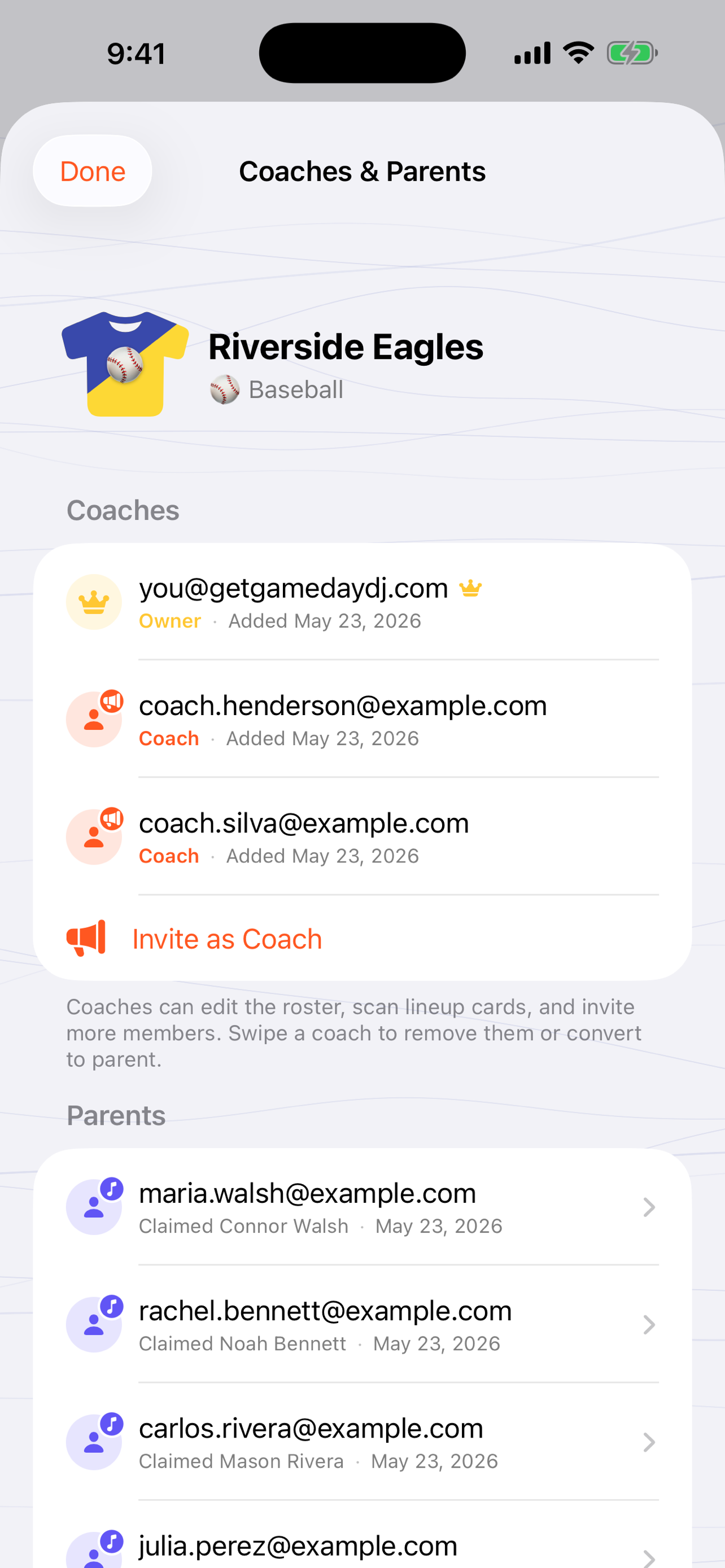
When you'd use this: you're tired of being the only one who can edit the roster, or you want players to choose their own kid's song instead of texting you 14 requests. Both start from the same screen: open the team, tap Coaches & Players.
Sharing a team is a Pro feature, and the team needs a verified owner. Sign in on the Account tab first (one tap, your email) so invites are tied to you.
Invite a co-coach
A co-coach gets full roster editing. Add players, assign songs, generate intros, run Game Day. Use this for your assistant coach or team player who helps manage everything.
-
1
Open Coaches & Players
From the Teams tab, tap your team, then tap Coaches & Players.
-
2
Tap "Invite as Coach"
That generates a link. It's multi-use. The same link works for anyone you want as a co-coach, so you can drop it once and forget it.
-
3
Send the link
Text it directly or paste it in your team chat. They tap it, install the app if they haven't, sign in with their email, and the team appears on their device with full edit access.
Invite the parents and players
A parent claims their kid and picks the walk-up song, or an older player claims themselves. Either way they can record their own voice as the announcer intro, and they get read-only access to the rest of the roster, so they can't change other players.
-
1
Tap "Invite Parents & Players"
From the same Coaches & Players screen. This link is multi-use too. One link covers the whole team.
-
2
Drop it in the team group chat
Every family taps the same link. There's no per-player setup on your end and no account you have to create for them.
-
3
They claim their player and pick a song
After joining, each player taps their kid's name to claim them, then chooses the walk-up song. You'll see who has claimed which player right on the Coaches & Players screen.
If a player joins but doesn't pick a song
You can claim a player on their behalf so the kid still gets a walk-up: open Coaches & Players → tap the player's row → Assign a Player → pick the player. From then on they can change the song just as if they'd claimed it themselves.
Troubleshooting
A player says the invite link doesn't work
The most common cause is tapping the link before installing the app. Have them install GameDay DJ first, then tap the link again. It opens straight into the join screen. If they're on the App Store page from the link, that's the install step; once it's installed, re-tap the original link.
Do co-coaches or players have to pay for Pro?
No. Sharing is Pro on the owner's side only. Anyone you invite joins free. They don't need a subscription to edit the roster (co-coach) or pick their kid's song (player).
Can I have more than one co-coach?
Yes. The "Invite as Coach" link is multi-use. Share it with as many assistant coaches as you want. Everyone who joins as a coach gets full roster editing.
I don't see a player's song change on my phone
Team changes sync in the background and on pull. Open the team and pull down to refresh, or tap the sync pill under the team name. If it still hasn't landed, confirm the player actually claimed the player (their row on Coaches & Players will show the player's name).
How do I remove someone's access?
Open Coaches & Players → swipe their row left → Remove. Their access stops the next time they refresh. Their account isn't deleted, and you can re-invite them later.
I'm handing the team to another coach next season
Use owner transfer from the team's management screen. It's a single-use handoff that makes the other coach the new owner. Use this instead of just adding them as a co-coach when you're stepping away for good.