Game Day. Play it live
This is the screen you run during the game. Tap the batter stepping up and their announcer intro plays straight into their walk-up song, instant, through your field speaker, with no spinner in between.
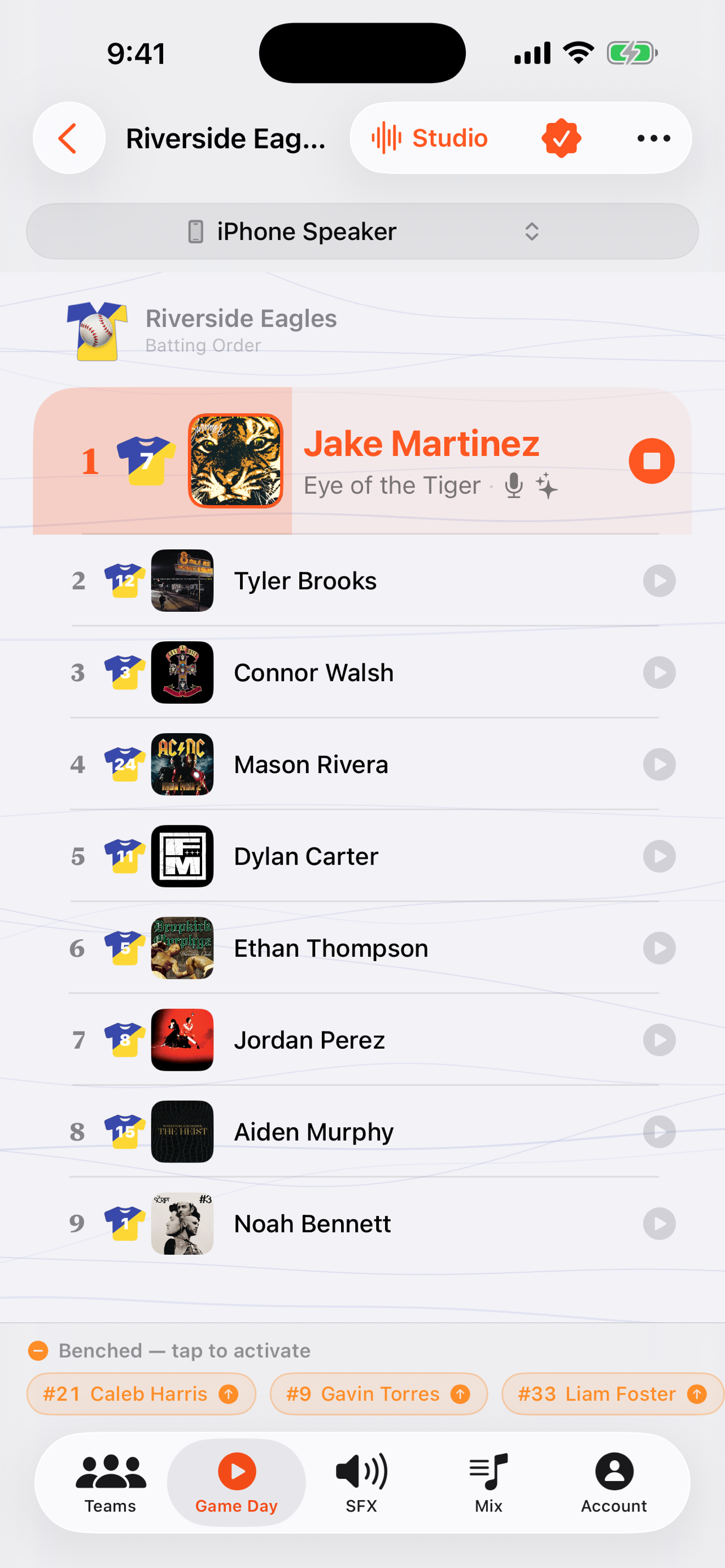
When you'd use this: the whole game, from the dugout. One thumb. You're watching the field, not the phone, so the board is built to be tapped without looking.
Run the game
-
1
Lock In before the first pitch
Tap Lock In first so every intro and song is cached on the phone and plays offline. Here's the Lock In walkthrough. It's what makes everything below instant.
-
2
Open Game Day for your team
Pick the team and open Game Day. You get the board of player tiles in batting order, with the leadoff batter highlighted.
-
3
Tap the batter coming up
Their announcer intro plays, then ducks smoothly into their walk-up song snippet. The next batters are already loaded, so there's no delay. The song starts the instant your finger lifts.
-
4
Follow the lineup
The board tracks who's up next so you're never hunting for the right tile. Tap down the order as the inning goes.
-
5
Fill the gaps between innings
Start the between-innings music mix for the changeover, fire a sound effect for a big play, or grab the mic to announce something live. Each one ducks the others automatically.
Troubleshooting
I tap a player and hear nothing
Check three things in order: the iPhone's silent/ring switch (it can mute playback), the volume, and which speaker you're connected to. The audio route shows on the Game Day toolbar. If it's pointed at the wrong speaker, see Bluetooth & AirPlay to switch it. If you never tapped Lock In and you're off wifi, that's the usual culprit too.
It's playing through the wrong speaker
The active output route is shown right on the toolbar of every audio screen. Tap it to switch between your Bluetooth speaker, AirPlay, or the phone. More detail on the Bluetooth & AirPlay page.
The announcer plays but the song is silent
This was a first-tap timing bug fixed in an earlier build. The song started before the audio session finished setting up. Accept the latest update. If it persists on the newest version, send your iPhone model and iOS version from Account → Report a Bug or Request a Feature.
There's a lag before the song starts
That means the team isn't locked in (or the cache expired). Tap Lock In on wifi before the game. After that, tap-to-audio is under 50ms because every cue is already on the device.
A Bluetooth speaker keeps going quiet between batters
Some speakers sleep during silence. Turn on Bluetooth Keep Alive in settings. It sends a silent keep-alive so the speaker is awake the instant the next walk-up fires.