Lock In for offline game day
Tap Lock In before you leave for the field, and every intro and walk-up song plays instantly, in airplane mode, for a full game, with no buffering between batters.
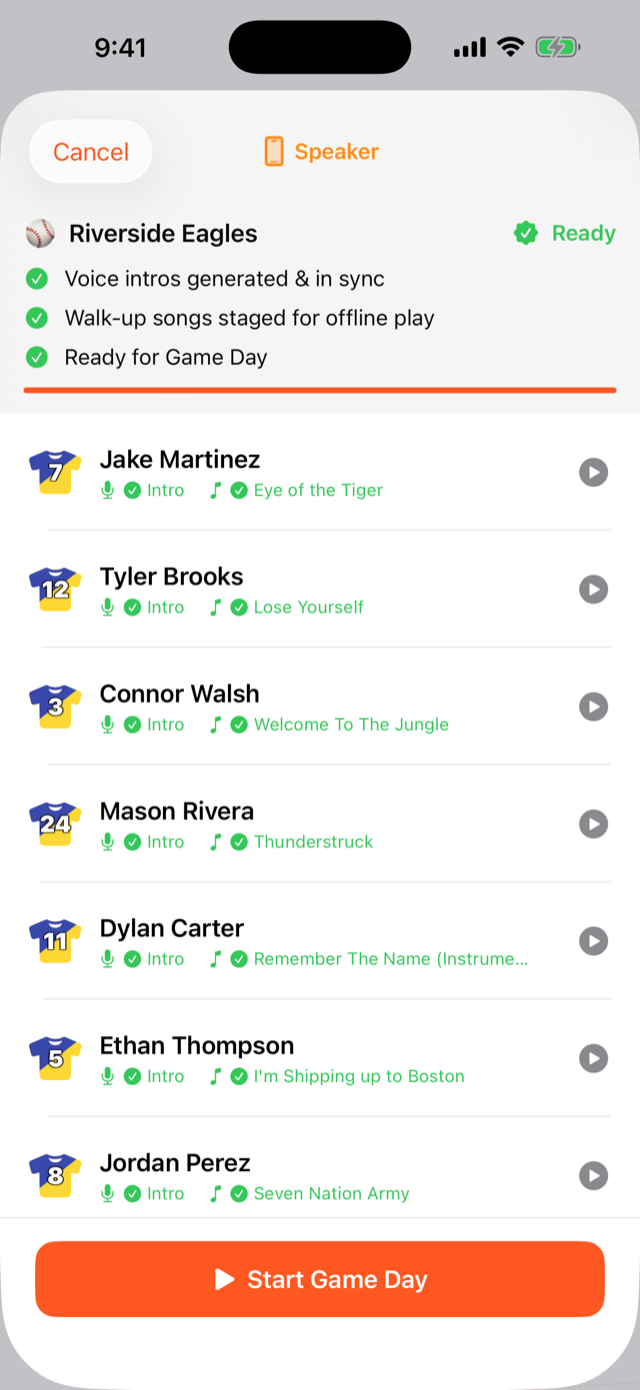
When you'd use this: always, right before a game, especially at fields with bad cell signal. Lock In is what makes the play button instant and the whole game work offline. Skip it and you're at the mercy of the network between every batter.
Lock in before the game
-
1
Finish your roster first
Make sure every player who's batting has an intro generated and a walk-up song picked. Lock In caches what's there. Players without a song just won't have one to play.
-
2
Tap Lock In
From the team, tap Lock In. The app downloads every intro, every walk-up preview, and every sound effect to the phone and runs a pre-game check.
-
3
Wait for the green Ready
Watch the check complete. Green means every cue is on the device and verified. If something's missing, the screen tells you which player so you can fix it before you leave home wifi.
-
4
Go play, signal or not
At the field you can be in airplane mode the whole game. Every walk-up fires the instant your finger lifts; nothing waits on the network.
How long the cache lasts
Preview audio is cached for 7 days, which is what the music catalog's licensing terms allow. After a week, just tap Lock In again before your next game and the app re-downloads fresh previews. Your generated announcer intros and recorded voices stay cached for as long as the player is on the roster. Those don't expire weekly.
If you share the team across two devices
Lock In caches audio onto the device you tap it on. If you and a co-coach run the same shared team on different phones, each phone needs its own Lock In. Tap it on every device you'll actually use at the field. The team's roster and song choices sync; the cached audio files are per-device by design, so the playback stays instant and offline.
Troubleshooting
It says the team is locked, but a second phone has no intros
Lock In caches audio on the phone you tapped it on. The lock status syncs across devices, but the audio files are stored locally per device. On the second phone, open the team and tap Lock In there too. Once its pre-game check goes green, every cue plays offline on that device.
Will it really work with no signal?
Yes. Once Lock In completes, everything plays in airplane mode for a full game, no wifi, no cell. That's the whole point of locking in before you leave.
The announcer plays but the first walk-up song is silent
This was a first-tap timing bug fixed in an earlier build. The music was starting before the audio session finished setting up. Accept the latest update and it's gone. If it still happens on the newest version, send us your iPhone model and iOS version from Account → Report a Bug or Request a Feature.
A player's song didn't cache
The pre-game check flags which player is missing a cue. Usually it's a player with no walk-up song assigned, or one whose preview failed to download on a weak connection. Assign the song (or re-tap Lock In on stronger signal) and run the check again until it's all green.
Do I have to lock in before every game?
Re-lock weekly at a minimum (the 7-day preview cache). It's also smart to lock in any time you've changed songs, added players, or it's been a while. It's a few seconds on wifi and it guarantees a clean, offline game.