Walk-up song snippet editor
The intro crescendo. The first guitar riff. The chorus drop. Trim every player's walk-up to the exact seconds that hit, so the part that gets the crowd is the part that plays.
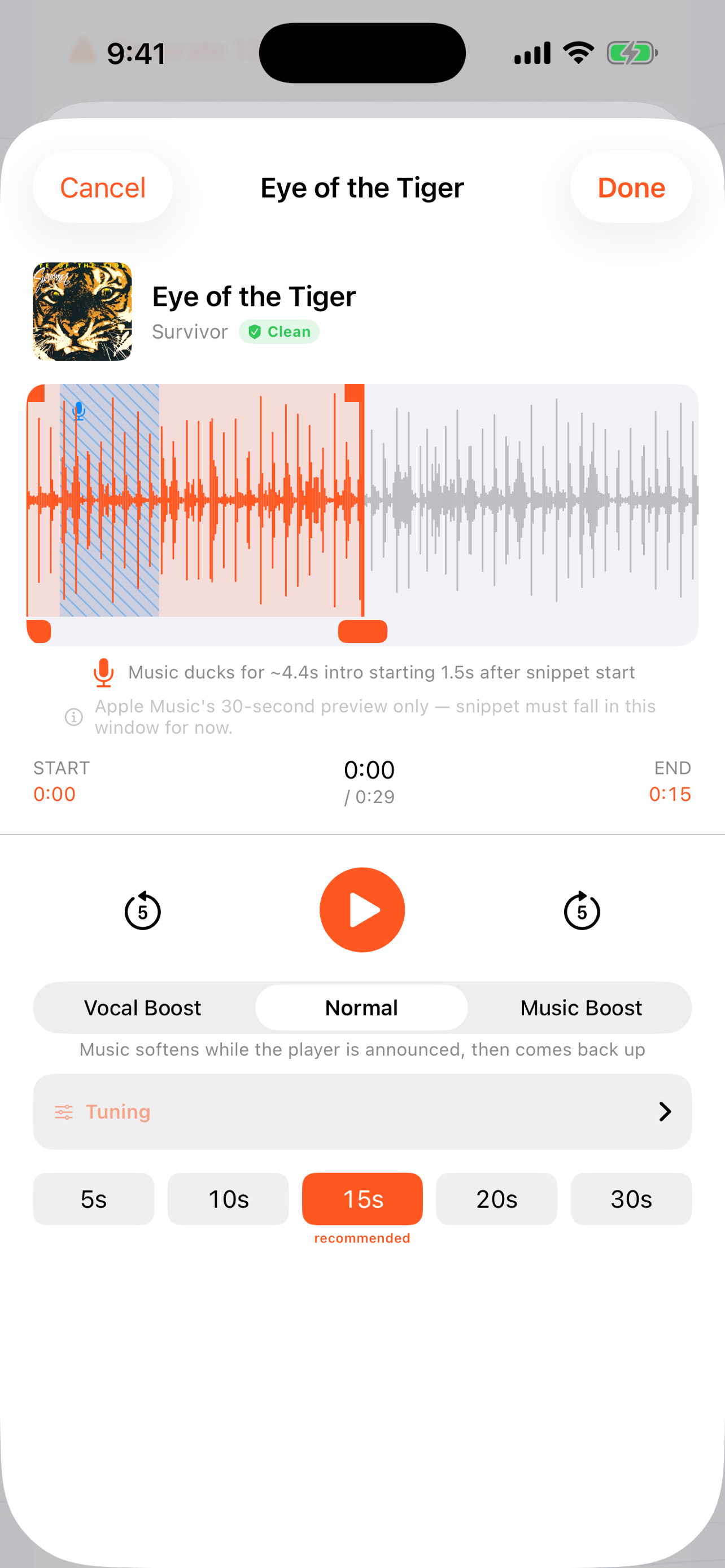
When you'd use this: any time the default first 15 seconds of a song aren't the good part. Skip the slow intro and land right on the riff or the drop.
Trim a snippet
-
1
Open the player's song
From the roster, open a player, tap their walk-up song, and open the snippet editor. You'll see the song's waveform.
-
2
Drag to the part that matters
Drag the trim region along the waveform. A zoom loupe pops up above your finger so it never covers the spot you're trying to hit. Place the start right on the downbeat.
-
3
Set the length
The sweet spot is about 15 seconds; stretch it up to 30 if the moment needs the runway. Preview it until it lands, then save.
-
4
Choose who leads the mix
The announcer intro and the song never talk over each other. The music ducks for the intro automatically. Use Vocal Boost / Music Boost to decide whether the announcer or the song leads.
More than one song per player
Save multiple snippets for the same player and play them in sequence or shuffle across at-bats, so the same kid doesn't hear the same eight bars all season.
Troubleshooting
My finger covers the exact spot I'm trying to set
That's what the zoom loupe is for. It pops up above your finger as you scrub so you can see the waveform you're touching. Move slowly near the start point and place it on the beat.
The announcer talks over the song (or vice versa)
Use Vocal Boost / Music Boost in the editor to set the balance. The music ducks for the intro automatically; the boost controls just decide which one sits louder in the mix.
The snippet only plays the slow intro of the song
That means the trim region is still at the start of the track. Drag it forward to the riff or chorus and re-save. The preview window plays exactly what will fire on Game Day.
Can I change the snippet later?
Yes. Reopen the song any time and re-trim. Re-run Lock In afterward so the updated snippet is cached for offline play at the next game.