Get the right part of a song (the 30-second window)
Walk-up songs come from a 30-second catalog preview, and the snippet editor trims that down to the few seconds that actually play at the plate. New picks now start at the hook automatically, so most of the time there's nothing to do. Here's how the editor works when you want to move it.
New picks start at the hook
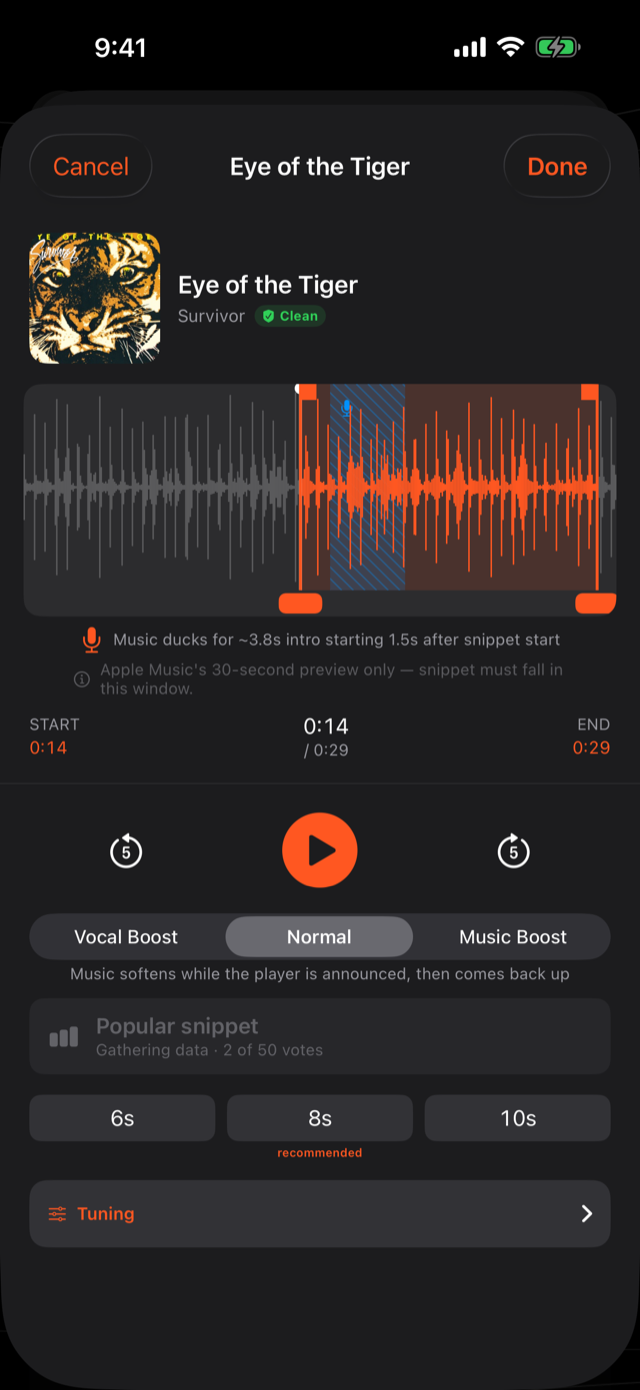
Pick a song and the snippet editor opens with the start point already sitting on the loudest part of the preview: the drop, the chorus, whatever hits hardest. A small note under the waveform says "Starts at the loudest part. Drag to change." so you know it moved on its own. Drag the window anywhere and that note goes away; the editor never moves a start point you've touched.
Open the snippet editor
The editor opens automatically right after you pick a song. To come back to it later, tap the waveform icon next to that song, in the player editor, in My Studio → Songs, or on a sound effect in the SFX board. It's the same editor everywhere.
Move the start point
Drag the highlighted window left or right along the waveform to slide the whole snippet to a different moment, or tap the START or END time to jump the playhead straight there. For a catalog song, the window can only move inside the 30-second preview; that boundary is fixed. Import your own audio and you can slide the window across the whole track instead, since the full file is yours.
Already have a favorite start time from other coaches? Tap Use popular snippet when it's available to jump straight to the moment most coaches picked for that song.
Preview before you save
Tap the big Play button to hear exactly what will play at the field, right from the current start point. Adjust and tap Play again as many times as you want. Tap Done when it sounds right.
How long it plays at the field
Walk-up snippets play 10 seconds by default, enough for the crowd to catch the hook without running past the gap between batters. Pick 8 or 12 seconds instead from the duration chips under the waveform if you want it tighter or a touch longer.
When the moment you want isn't in the preview
Every so often the part you want sits outside the 30-second preview entirely, and the editor can't reach it on that track. Two ways around it:
- Search for a different version. A remix, live cut, sped-up version, or cover is a different track with its own 30-second preview, often centered on a completely different moment. Search the song name plus remix, sped up, or live and preview a few until one lands on the part you want.
- Import your own clip. For total control, make the exact clip you want and add it yourself. Full details in Import your own audio. Once it's in, the snippet editor lets you place the window anywhere across the whole file.
Was this article helpful?