Remove or change a player's walk-up song
Picked a song and changed your mind? Removing it is one swipe. The control stays hidden until you swipe, so here is exactly where it lives on each phone, and how to swap in the new pick.
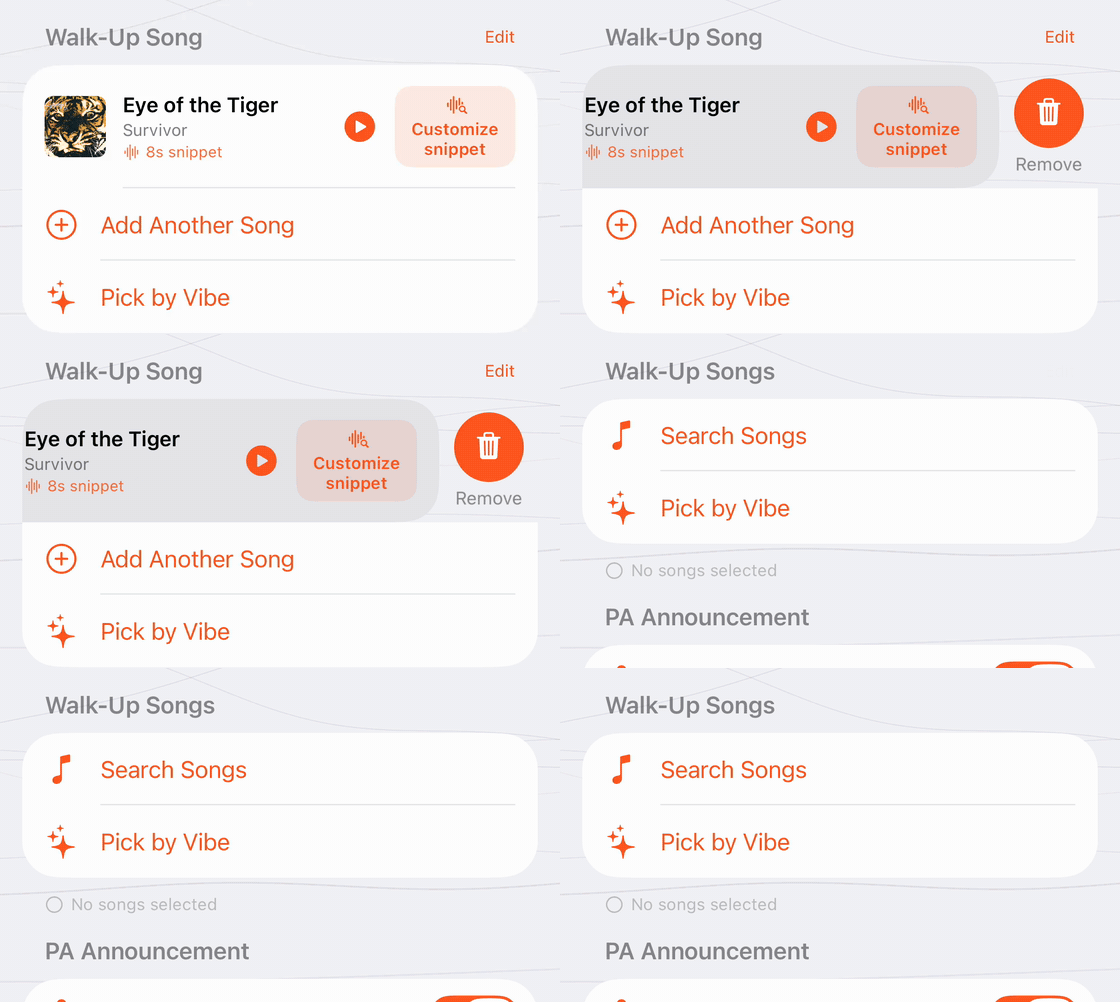
Swipe left, tap Remove
- 1
Open the player
Open your team and tap the player to open their editor.
- 2
Swipe left on the song
Under Walk-Up Song, drag the song row to the left. A red Remove button slides out from the right edge.
- 3
Tap Remove, then Save
The song disappears from the list. Tap Save in the top corner to keep the change.
On Android, there is no swipe. Tap the trash icon beside the song instead.
Pick the replacement
With the old song gone, tap Search Songs (or Add Another Song if the player still has one) and pick the new one. The snippet editor opens so you can trim it to the moment that hits.
If you already Locked In for a game, Lock In again after the swap so the new song is bundled for offline play.
If a parent picked the song
Songs a parent chose through a family invite show up on the player like any other. A coach can remove them the same way. Parents change their own pick from GetGameDayDJ.com/claim, see managing your player's walk-up from the web.
Was this article helpful?