Scan your lineup card
Snap a photo of the lineup card and our AI builds the whole roster (every name, jersey number, and batting position) so you're not thumb-typing 12 kids into a phone.
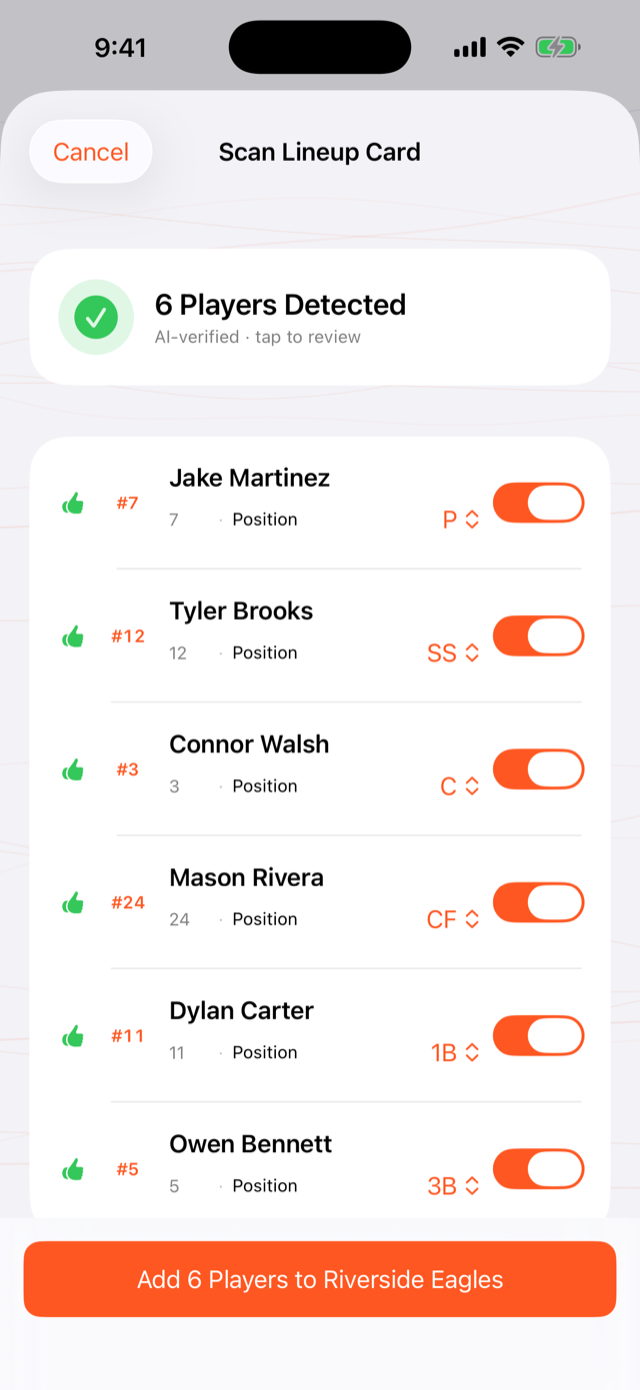
When you'd use this: the first time you set up a team, or any time you get a fresh card at a tournament. Printed, handwritten, or a screenshot from another app. They all work in the same scan.
Scan a roster
-
1
Start a new team
From the Teams tab, tap + New Team → Scan a Lineup.
-
2
Take a photo or pick one
Snap the card with the camera, or choose an existing image from your library. A clear, straight-on shot reads best, but creased, dim, and handwritten cards work too.
-
3
Let our AI read it
It pulls every name, jersey number, and batting position in one pass. Each scan reads one photo, so frame the card to get as many players in as you can.
-
4
Review, then add
You land on a review screen showing everything it found. Fix anything that's off, then tap Add players. Nothing is committed to your roster until you approve it.
Coming from another app?
Screenshots from BallparkDJ, iScore, and GameChanger scan straight in. If you're moving from BallparkDJ, the songs come across too. Here's the 30-second migration guide.
Troubleshooting
It missed a player or got a number wrong
That's exactly what the review screen is for. It shows everything detected before anything is saved. Tap the field that's off and fix the name, number, or position, then add the roster. Hard-to-read or heavily stylized cards are the usual cause; a flatter, better-lit photo helps the next time.
My roster is longer than one screen
Each scan reads one photo. Get as many players as you can into a single clear shot, then add anyone who didn't fit by hand from the roster. It only takes a few seconds.
Can I scan handwritten cards?
Yes. Printed, handwritten, and screenshots all work. Handwriting is the hardest case, so give it a clear, straight-on, well-lit photo, and the review screen lets you correct anything before saving.
I already have this team. Will scanning make duplicates?
No. Re-scan a card mid-season and we reconcile it against your existing roster instead of creating duplicate players, so you can update batting order or add a new kid without rebuilding the team.
I'd rather just type the roster
You can. Create the team and add players by hand from the roster screen. Scanning is the shortcut, not the only way.