Migrating from BallparkDJ
Coming from BallparkDJ? You don't need to retype your roster. With two settings turned on, one screenshot brings every player's jersey, name, and walk-up song across in a single pass. Below: the migration steps, then a quick read on what actually changes when you switch.
Import your BallparkDJ roster
- 1
Set up BallparkDJ for a clean screenshot
Open BallparkDJ. Tap Actions (bottom-center) → System Settings. Turn ON Show Jerseys and Show Song Info.
- 2
Switch to List view
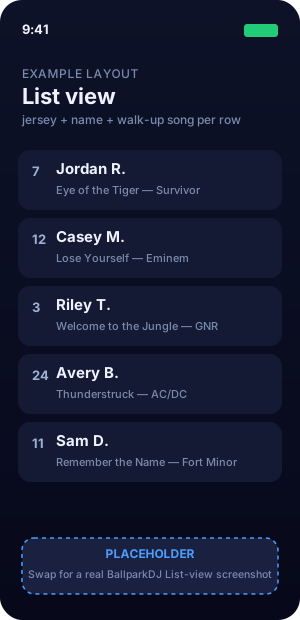
Tap the jersey icon in the bottom-right to cycle views. Stop when you see one player per row with jersey + name + song visible.
- 3
Screenshot the team
Fit as many players as you can into one clear shot. If your roster runs past one screen, add anyone who didn't fit by hand after importing.
- 4
Scan in GameDay DJ
New team → Scan Lineup Card → Choose from Library → pick the screenshot. Jersey, name, and song title/artist all come across.
Because Show Song Info was on, GameDay DJ picks up each player's walk-up song title and artist too, not just the roster.
What actually changes when you switch
Migration is free, the apps coexist, and you can run both side-by-side for a game or two if you want. Here's what coaches notice in the first weekend.
The walk-up song becomes a family moment
The biggest structural difference: BallparkDJ is a single-coach tool. You pick every song for every kid. In GameDay DJ, each parent picks their own kid's walk-up song from their own phone, and co-coaches can edit the lineup with you. You stop being the music librarian; the song becomes the kid's moment, picked by their own family.
Announcer intros: instant and included
BallparkDJ uses real Major League announcer recordings, a genuine selling point, but they charge $3.99 per player (or $6.98/player for their top SuperVoice tier) and the voice components are pre-recorded. GameDay DJ uses AI to generate any player's announcer intro instantly, in 25+ voices including stadium-legend tributes, for $0 per player, included with Pro. New kid mid-season? Generated in 5 seconds.
Cost adds up differently over time
BallparkDJ's per-player voiceover fee keeps hitting every time a new kid joins the team, and in youth sports, ~1 in 3 players turn over each year. By Year 3, a multi-team coach using BallparkDJ's best voices for 3 teams is at roughly $440; the same coach on GameDay DJ's Season Pass is at $60. See the full cost breakdown for the assumptions and the year-by-year math.
Offline reliability, on purpose
Once you tap Lock In before a game, GameDay DJ caches every intro and song locally. Dead-cell rural field, phone in airplane mode, no signal at all. The playback path never touches the network. That's an architectural choice, not a side effect.
A few things BallparkDJ does well that you may miss
If a specific Major League announcer's real recorded voice matters to you for your kid. That's BallparkDJ's authenticity angle and AI won't reproduce it. Their app is also 12+ years old with thousands of reviews; the depth shows. Most coaches switch for the AI speed, the parent layer, and the per-player cost, but it's worth naming the trade.
Was this article helpful?