Manage your teams
Coach more than one team? Run them all from one app. Each with its own color, roster, sport, and settings, so you're never untangling two lineups in your head.
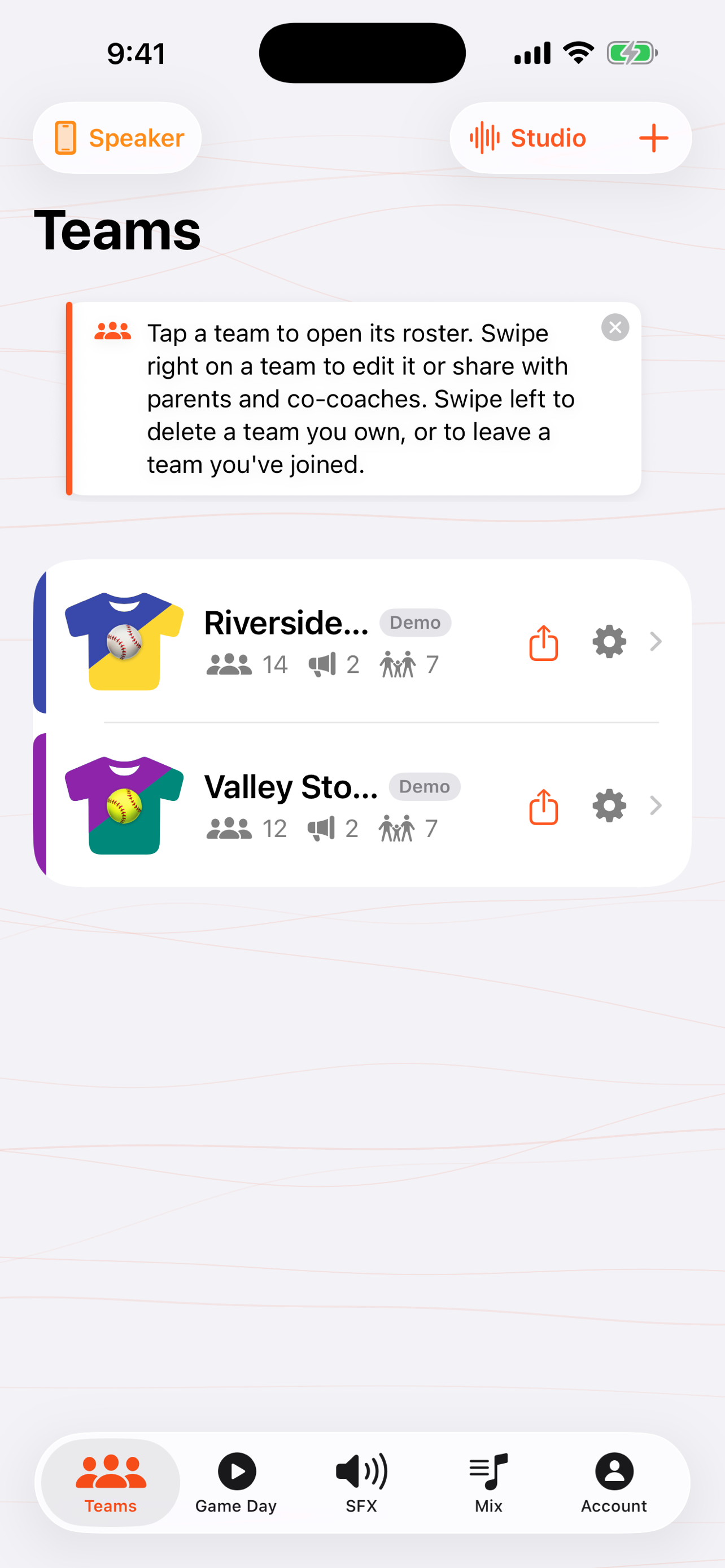
When you'd use this: you've got a rec team and a travel team, or you coach across two sports. Keep every roster clean and separate without a second app or a second account.
Set up and organize teams
-
1
Add a team
From the Teams tab, tap + New Team. Scan a lineup card to build the roster instantly, or start blank and add players by hand.
-
2
Pick the sport and a color
Choose the sport (positions and terminology adapt to it) and give the team a color so you can tell your teams apart at a glance in the list and on the Game Day board.
-
3
Tap to open, swipe for actions
Tap a team to open its roster. Swipe a team row left or right for quick actions like sharing and managing members.
-
4
See your roster at a glance
Each card shows players, co-coaches, and parents at a glance, so you always know who's on the team and who's joined.
Troubleshooting
How do I switch between teams?
Just tap the team you want in the Teams list to open its roster, or pick the team at the top of Game Day. Each team keeps its own roster, songs, and lock-in state separately.
How do I delete a team?
Swipe the team row to reveal its actions and choose delete. If it's a shared team you own, deleting it also stops co-coaches' and parents' access.
I see duplicate demo teams
Older versions could duplicate the sample teams across devices. The app self-heals. Fully close and reopen it and the extras collapse back to one demo team per sport. You can also delete the samples once you've added your own.
What's the PRO badge on a team?
It marks a team that has Pro features active. Either because you have Pro, or because it's a shared team. It's a quick signal that sharing, the music mix, Live Mic, and custom sound design are available on that team.
Can someone else help me manage a team?
Yes. Invite a co-coach with full roster editing, or invite parents to pick their own kid's song. See sharing with co-coaches and parents.