Scan your roster & auto-reorder your lineup
Typing 12 kids and their jersey numbers into one more app is the worst part of game day. GameDay DJ skips it: take one screenshot of the roster you already keep (in GameChanger, BallparkDJ, a team email, or a paper lineup card) and we read every player in a single pass. When the batting order changes, snap a photo and we reshuffle the lineup to match.
Scan a roster into a new team
The fastest way to create a team, from a photo you take now or a screenshot already in your library.
- 1
Open the scanner
On the Teams tab, start a new team and choose Scan Lineup Card.
- 2
Take a photo or choose a screenshot
Tap Take Photo for a paper lineup card, or Choose from Library to pick a screenshot you saved from another app.
- 3
Review what we found
Each player shows up as a row (jersey, name, position). Anything the scan wasn't sure about is flagged. Edit, remove, or add a player by hand.
- 4
Confirm, and your roster is live
Tap to import. Your team is built, batting order and all, ready for walk-up intros and game day.
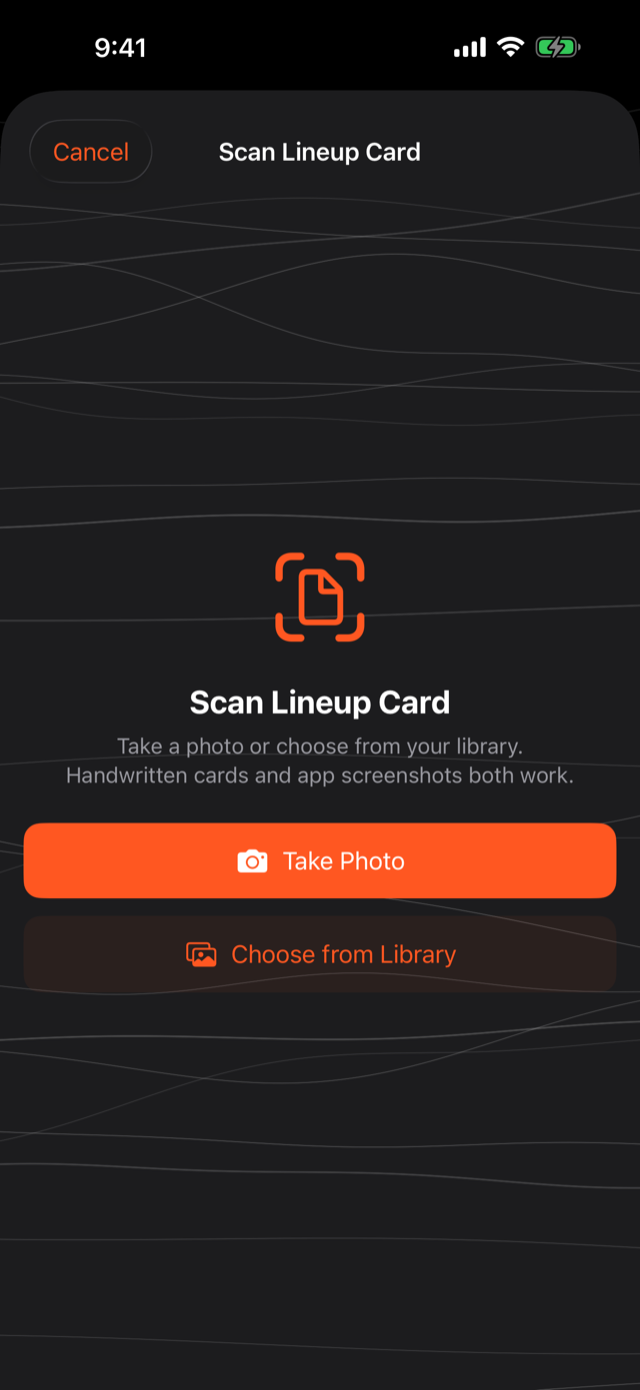
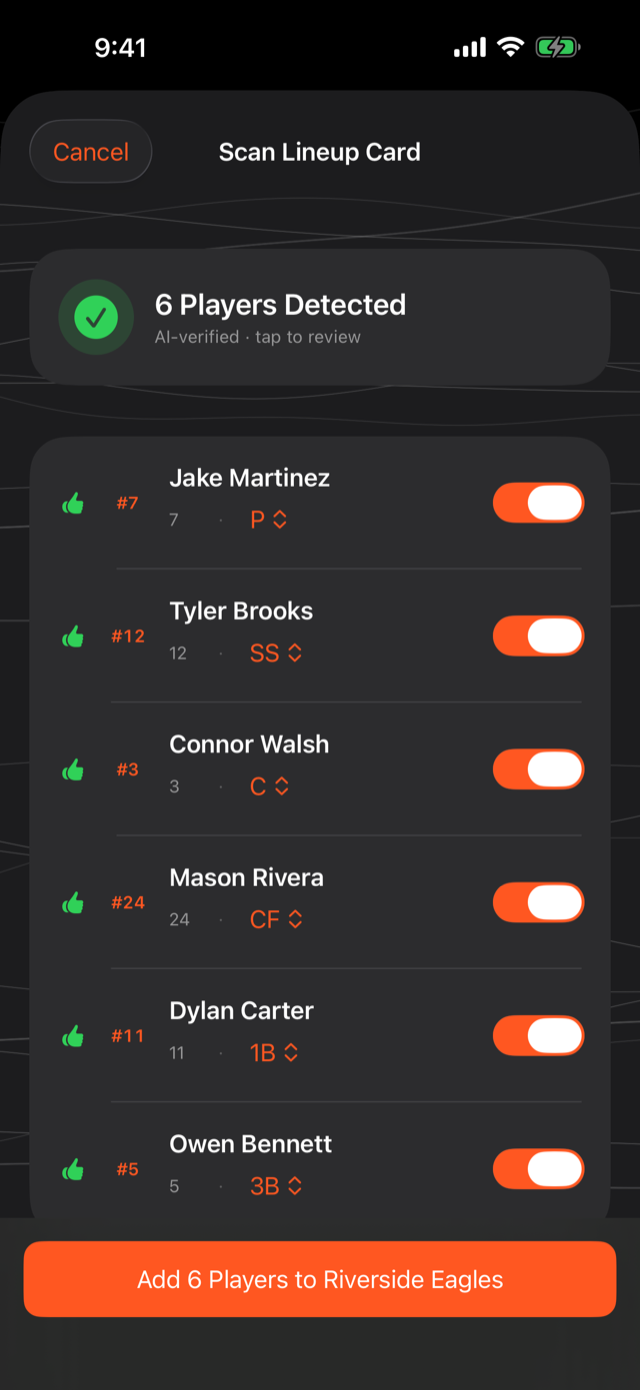
Roster longer than one screen? Fit as many players as you can into one clear shot. If a few don't fit, add them by hand from the roster after importing. It takes seconds.
Reorder your batting lineup from a photo
You already have the team. The order just changed. Don't drag rows one at a time. Snap the new lineup and let the app match it.
- 1
Choose Scan to Reorder Lineup
From your team, pick Scan to Reorder Lineup. This mode assumes the players are right. It only updates the batting order.
- 2
Photograph today's lineup
Shoot the dugout whiteboard, the paper card, or a screenshot from your scorekeeping app. The app reads the order top to bottom.
- 3
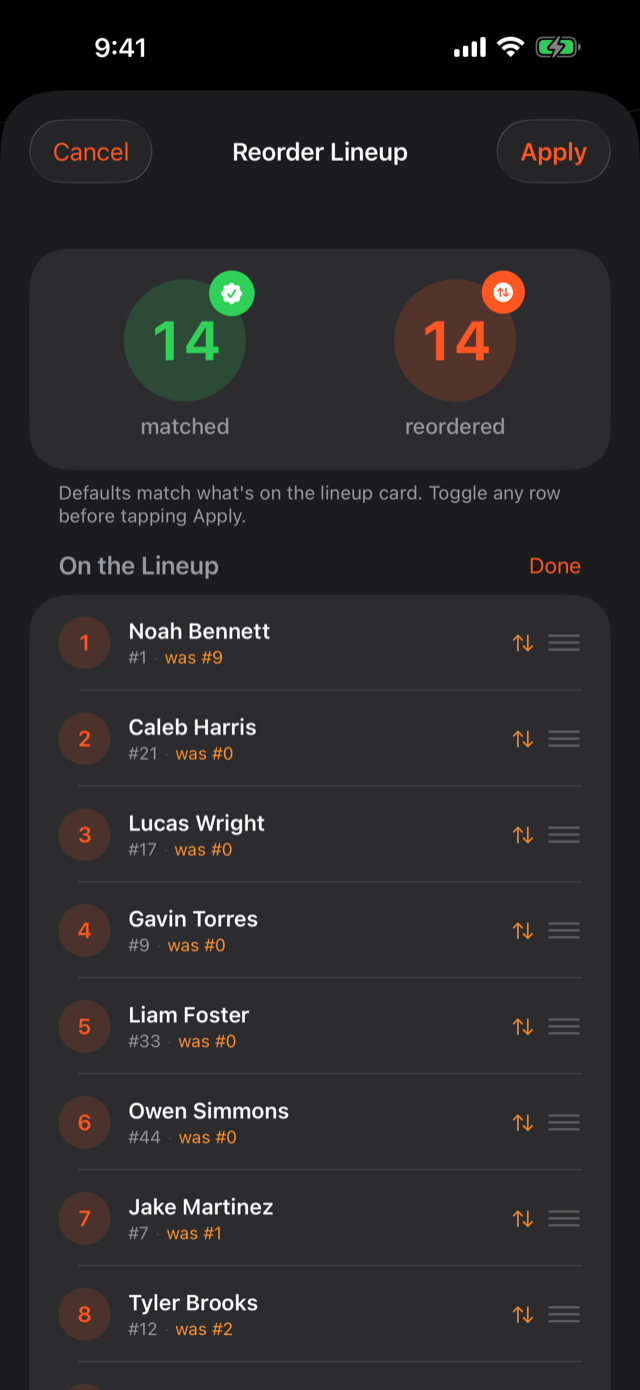
Confirm the new order
We show how the photo matched your existing players and re-sequence the batting order. No new-player prompts, just your lineup, reshuffled.
FAQ
Do I need a paid subscription to scan a roster?
No. Scanning a roster and building a team is part of the free coach experience. You just need a free GameDay DJ account signed in. A Pro subscription unlocks sharing your team with co-coaches and parents, the Live Mic, and custom sound effects. (Syncing your own teams across your devices is free once you're signed in.) See what Pro unlocks.
Which apps can I scan from?
Any of them. The scanner reads an image, so anything you can screenshot works (GameChanger, BallparkDJ, a league roster email, a Notes list, or a printed paper lineup card).
What if the scan gets a name or number wrong?
Every scan ends on a review screen before anything is saved. Rows the scan wasn't confident about are flagged. Tap any row to correct it. Nothing is committed until you confirm.
Does this need a signal at the field?
The scan uses our AI, so it needs a connection when you run it, best done before you leave the house. Once your team is locked in, game-day playback is fully offline.
Does GameDay DJ require a music subscription?
No. Walk-up songs are 30-second previews from a public music catalog or audio you import yourself. There's no music-streaming subscription to connect.
What sports does it support?
GameDay DJ works for any sport with a batting order or roster. Baseball and softball are the core, and the lineup/roster flow fits other youth sports too.
Was this article helpful?