Coming from GameChanger
If you run your team in GameChanger, your roster is already a clean, printed list, exactly what GameDay DJ's scanner reads best. One screenshot brings every player across. Most coaches end up running both apps side by side; the section below covers how that works.
Import your GameChanger roster
- 1
Open your roster in GameChanger
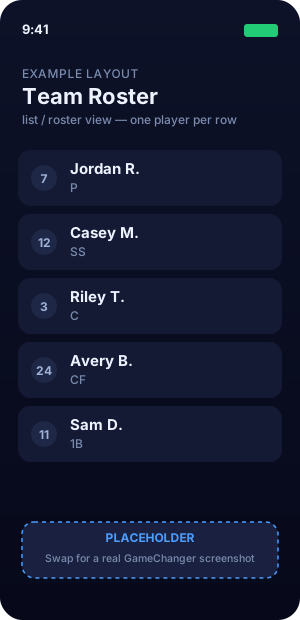
Go to your team's roster (or lineup) screen, whichever shows each player on its own row with the jersey number visible.
- 2
Take a screenshot
Use your phone's screenshot gesture (on iPhone, Side button + Volume Up).
- 3
Scan it in GameDay DJ
Start a new team, choose Scan Lineup Card → Choose from Library, and pick the screenshot. Every player comes across in one pass.
- 4
Review and confirm
Glance over the imported rows, fix anything flagged, and confirm. Done.
The clearer the screen, the cleaner the scan. A list view with one player per row works best. If your roster runs long, fit what you can into one shot and add anyone left over by hand.
GameDay DJ + GameChanger (the dugout-phone tag team)
You don't have to choose. GameChanger and GameDay DJ are built for two different jobs that happen on the same iPhone during the same game. Most coaches we hear from run them side by side.
Different jobs, same dugout
- GameChanger. Scorekeeping, live stats, video, the league/team logistics.
- GameDay DJ. The audio layer: the announcer voice, the walk-up song, the SFX, the between-inning mix.
One phone can do both. Run GameDay DJ on the field with the Bluetooth speaker; let GameChanger sit beside it (or on a tablet in the dugout) for the at-bat log. Lock In once before first pitch and the audio loop is offline-safe, no fight for cell signal.
Where GameDay DJ goes further: the family layer
GameChanger treats parents as spectators. They watch the stream, they get the stats, they don't run anything. GameDay DJ treats parents as participants: each parent picks their own kid's walk-up song from their own phone, and co-coaches can edit the lineup with you. The walk-up song becomes the family's moment, not just yours. That's the seam GameChanger structurally doesn't reach into.
Practical tips for running both
- Bluetooth audio routes to GameDay DJ since it's the one playing sound. GameChanger doesn't fight for the audio session.
- Use Lock In on GameDay DJ a few minutes before first pitch. The cached intros + songs make the play path instant and offline.
- Roster-typing only happens once: scan from GameChanger (above) → import to GameDay DJ. Edits afterward live in each app.
FAQ
Will it pull walk-up songs too?
The scan reads what's on screen (jersey, name, position). Songs come across when they're printed on a lineup card; otherwise you'll add them in GameDay DJ (it's the fun part).
Do I have to leave GameChanger?
Not at all. Most coaches keep scorekeeping in GameChanger and run the PA with GameDay DJ. See the coexistence section above. Importing your roster doesn't change anything in GameChanger.
Can GameChanger run the walk-up audio too?
GameChanger doesn't have a walk-up music / announcer feature. It's a scorekeeping + streaming app. That's why coaches add GameDay DJ alongside it instead of replacing it.
Can parents see the schedule from inside GameDay DJ?
Not directly. Game schedules and live scores stay in GameChanger. GameDay DJ owns the walk-up song, the announcer intro, and the SFX, plus team sharing so parents can pick their kid's song.
Was this article helpful?