Share your team with players
You built the roster. Now hand the fun part to the families: share your team and players can pick their own walk-up song, set a nickname, and more, while you stay in control of the lineup. Sharing is a Pro feature.
Invite players
- 1
Open team sharing
From your team, open the share options and choose to invite players.
- 2
Send the invite link
Share the magic invite link however you already talk to your team (text, email, group chat). Players tap it to join.
- 3
Players claim their player
Each player claims their spot and can set the walk-up song and intro. Their changes sync back to you.
You stay in control
Players can only edit the player they claim, never the lineup or other players. You remain the team owner. You can see what changed and keep the batting order yours.
Managing members
Someone accepted the invite but didn't claim a player. What now?
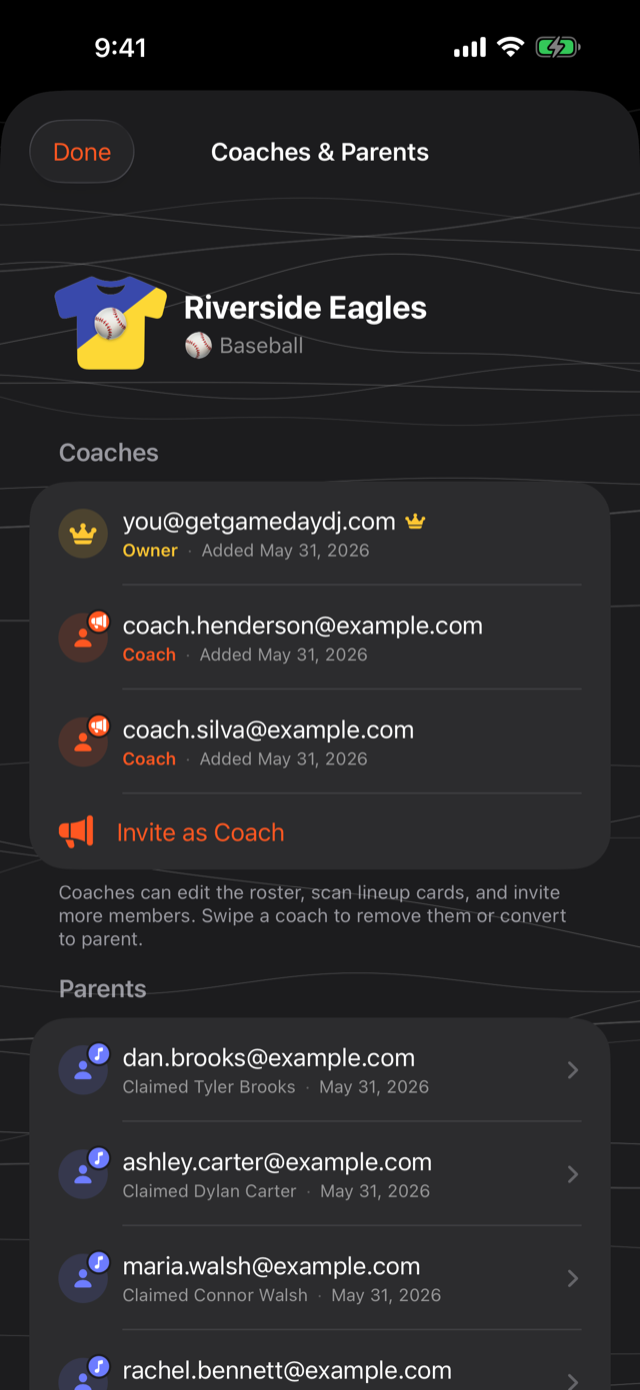
No problem. They're on the team but haven't taken a player yet. Point them to the roster to tap their player and claim. Until they do, you can set that player's song yourself.
How do I remove a coach or player?
From the team's members list, remove the person. They lose access immediately; the player they claimed stays on your roster.
Sharing is Pro
Team sharing and co-coaches are Pro features. A Pro subscription unlocks sharing your team with co-coaches and parents, the Live Mic, and custom sound effects. (Syncing your own teams across your devices is free once you're signed in.) See what Pro unlocks. Scanning your roster, generating intros, and syncing your own teams across your devices stay free.
Was this article helpful?